
Instructions for Submitting Student Petitions

eZamolbe – Student Guide
IMPORTANT
TO SUBMIT A PETITION, ALL STUDENTS MUST UPDATE THEIR PASSWORDS. THE SOLE EXCEPTION APPLIES TO FIRST-YEAR STUDENTS WHO ENROLLED IN AN INTEGRATED OR UNDERGRADUATE PROGRAMME FOR THE FIRST TIME IN THE 2025/2026 ACADEMIC YEAR.
Password Reset Procedure
Students must navigate to https://login.aaiedu.hr/promjenazaporke to update their password.
Open the following link in a web browser: https://login.aaiedu.hr/promjenazaporke/
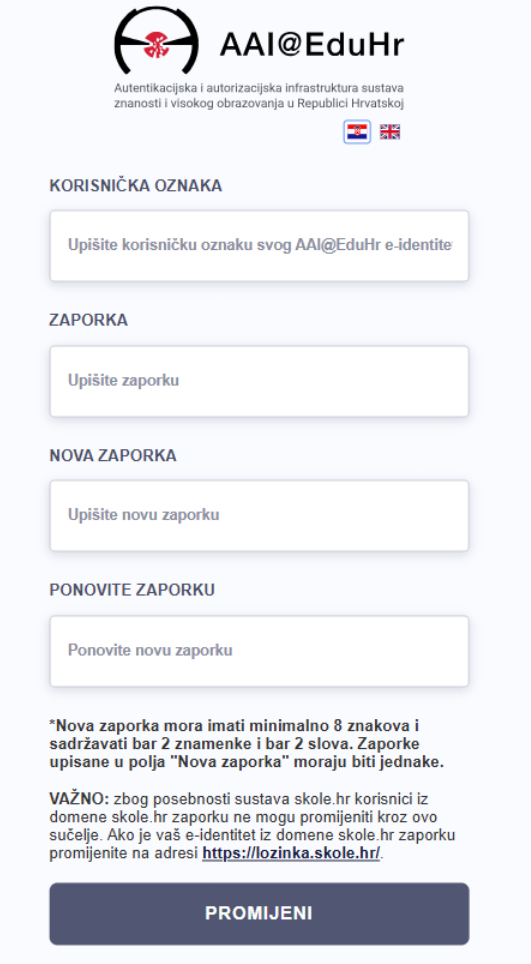
Figure 1. Initial password reset interface
Enter your username in the User ID (Korisnička oznaka) field (Figure 1).
Enter your current password in the Password (Zaporka) field (Figure 1).
Enter your new password in the New Password (Nova zaporka) field, then re-enter it in the Confirm Password (Ponovite zaporku) field to establish your future login credentials (Figure 1).
Once all fields are completed, click Change (Promijeni) (Figure 1).
Note: The new password must be at least 8 characters long and contain at least 2 digits and 2 letters. The entries in the ‘New Password‘ and ‘Confirm Password‘ fields must match exactly.
PETITION SUBMISSION PROCEDURE
- Logging into the e-Student Portal
Enter the address https://studenti.ufzg.hr/ into a web browser (Firefox or Chrome) and log in using your academic credentials. Alternatively, access the portal via the direct link provided on the Faculty website. Upon logging in, the portal dashboard will display as shown in Figure 2. - Selecting the Petition Review and Submission Icon
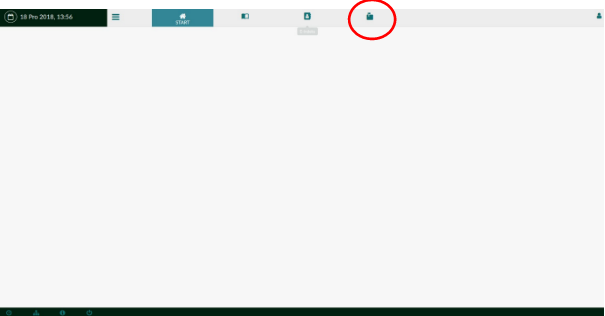
Figure 2. Petition review and submission icon - Selecting this icon opens the petition submission window (Figure 3).
All fields marked with an asterisk (*) are mandatory. Applicants must attach the required supporting documentation along with proof of payment (if the selected petition type incurs an administrative fee).
Attachments are added by clicking the Upload File icon.
If the registered email address is incorrect, it must be updated via the Studomat portal.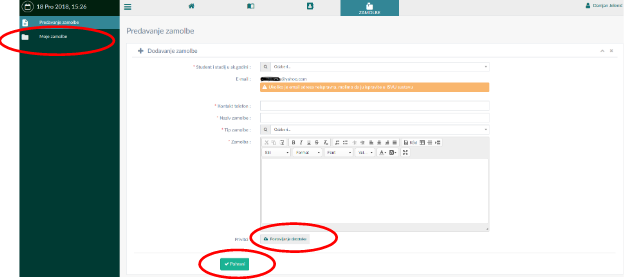
Figure 3. Petition submission window
Clicking “Save”
finalises the submission process. You can track the progress of your request by clicking My Petitions (“Moje zamolbe”) in the left-hand menu. The status classifications are: SUBMITTED, APPROVED, and DECLINED.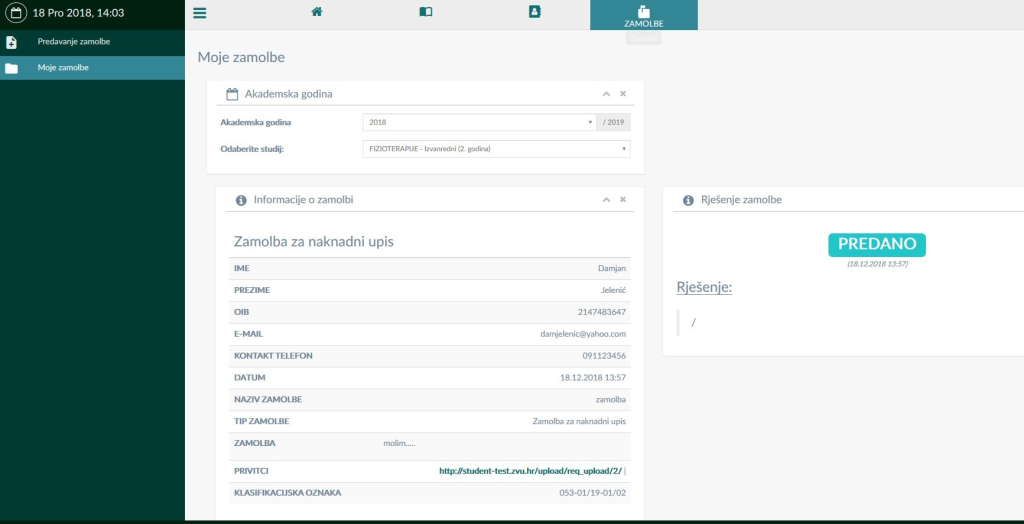
Figure 4. Overview of the ‘My Petitions’ window
Submit Petition
Log in to continue
The initial password can be reset via the following link: https://login.aaiedu.hr/promjenazaporke