
Turnitin is a US-based software application designed for checking the originality of academic work.
The developer’s website is available at: https://www.turnitin.com
Technical support for Turnitin is available online at: https://www.turnitin.com/self-service/support-form.html?okay=ok
Sources used by Turnitin for originality checking::
- The internet
- Over 178 million scholarly journal articles
- The proprietary document database compiled by the software developer
- Additional repositories (e.g., Dabar, Hrčak)
The procurement of Turnitin originality-checking software licences for public higher education institutions within the science and education system is funded by the Ministry of Science and Education through the University Computing Centre (SRCE) budget. SRCE conducted the procurement process and coordinates licence distribution and software utilisation. The available licences permit an unlimited number of checks for each enrolled student. Document verification (ranging from seminar papers to undergraduate, Master’s, and doctoral theses) can be performed by academic and non-academic staff, as well as by the students themselves, in accordance with the procedures and requirements of each higher education institution.
Turnitin software access – link
An AAI@EduHr user account is required to log into the application.
QUICK SCAN
The “Quick scan” option is available to all faculty staff for rapid, straightforward verification of their own work; students do not have access to this feature.
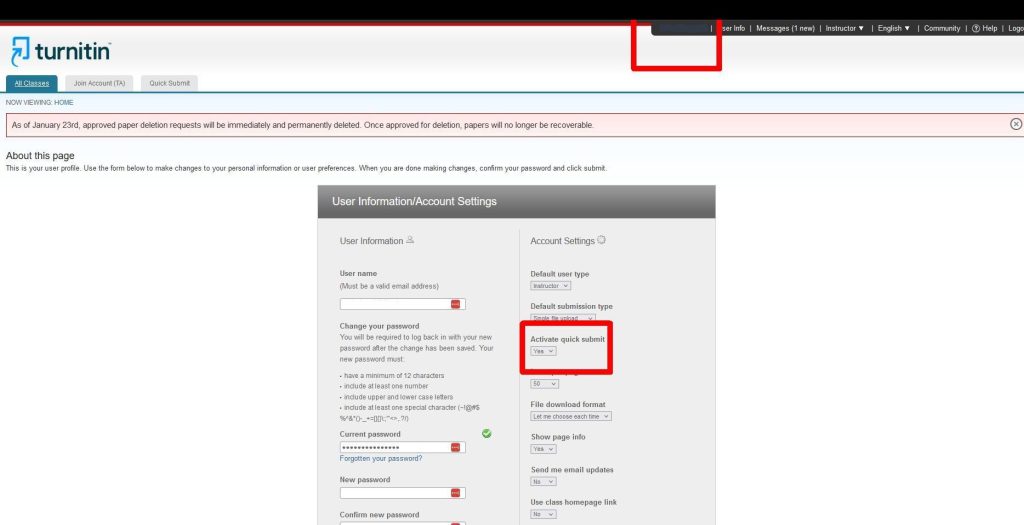
This option is not enabled by default and must be activated manually (Figure 1):
- Upon logging into the application, select your name from the display to access the user menu.
- In the menu, set the “Activate quick submit” option to “Yes“
- Once the “Quick submit” option is enabled, it will be available for selection on the home screen (Figure 2):
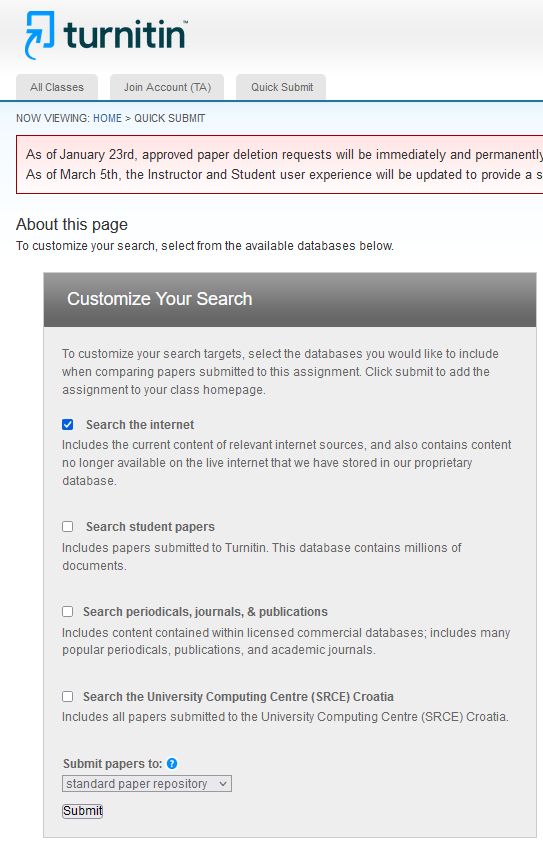
- To initiate the upload process for originality checking, select the “Submit” option.

- On the next screen, select at least one database option (Figure 3):
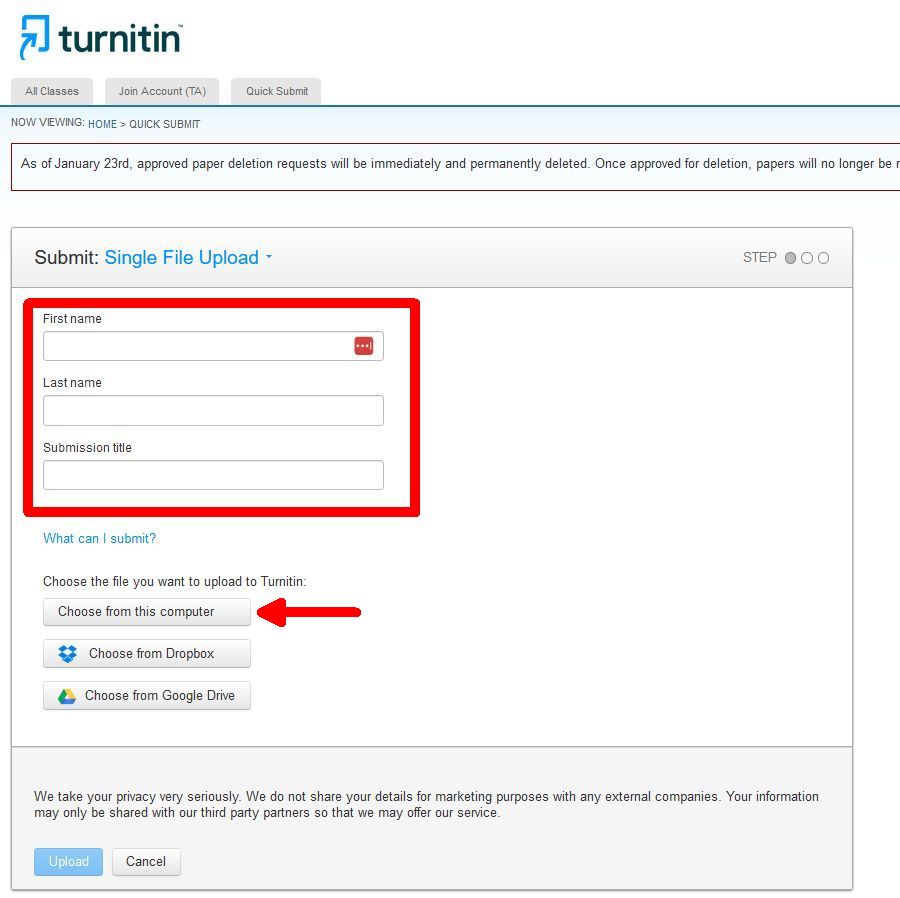
- In the next step, enter the first name, surname, and title of the document to be uploaded (Figure 4):
- Next, select the option to upload the document from your computer or use one of the other available options.
- The system will then direct you to the submission window (Figure 5):
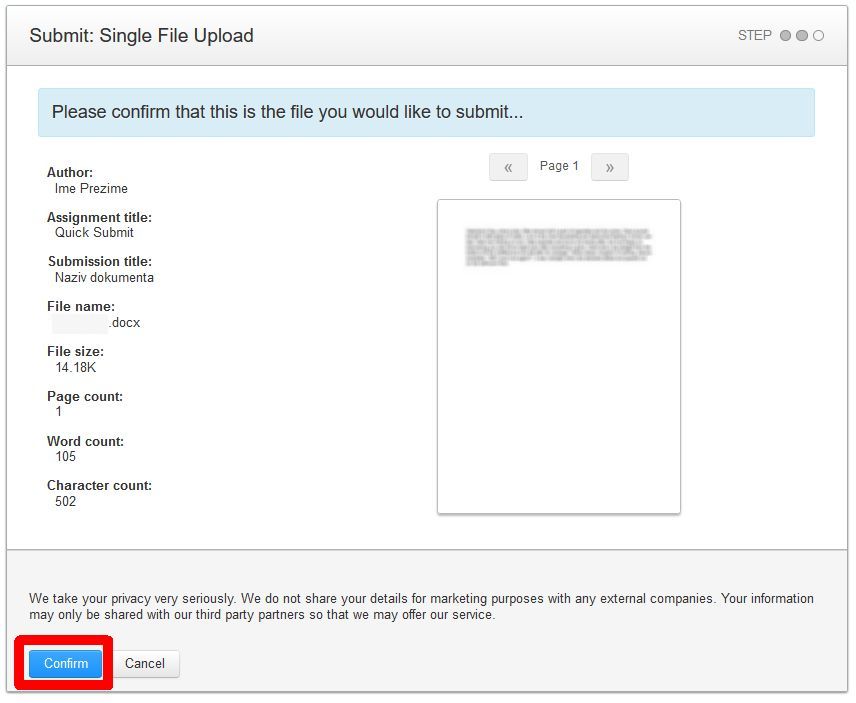
- The system automatically initiates the originality check.
- Depending on the file size, the checking process may take some time to complete.
- All submitted papers and their corresponding reports can be viewed on the “Quick scan” page (Figure 6):
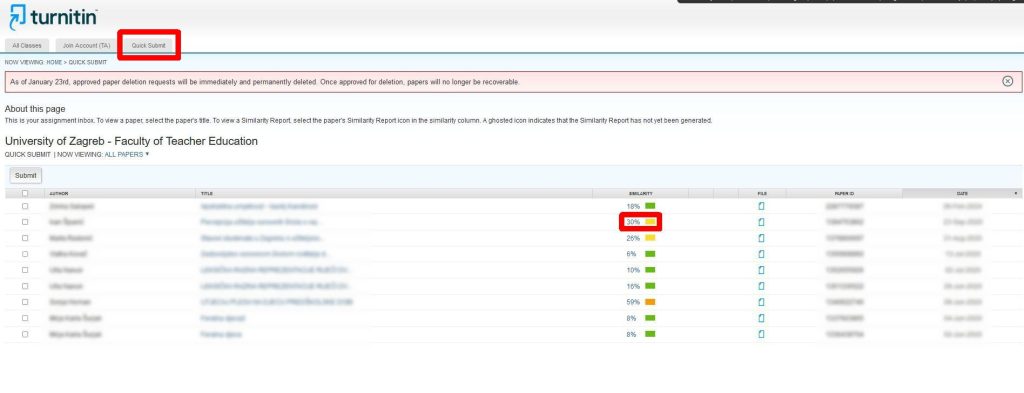
– Clicking the percentage icon opens the report page for the selected document, providing options to view and download the report to your computer.
– For further enquiries, please contact: turnitin@ufzg.hr
– Detailed instructions and information from SRCE are available via the following link: https://www.srce.unizg.hr/spa